
Kling AI Scene Control: Create Smarter AI Videos With Precise Scene Control
The biggest frustration every AI video creator hits within their first week: you write a detailed prompt, generate a clip
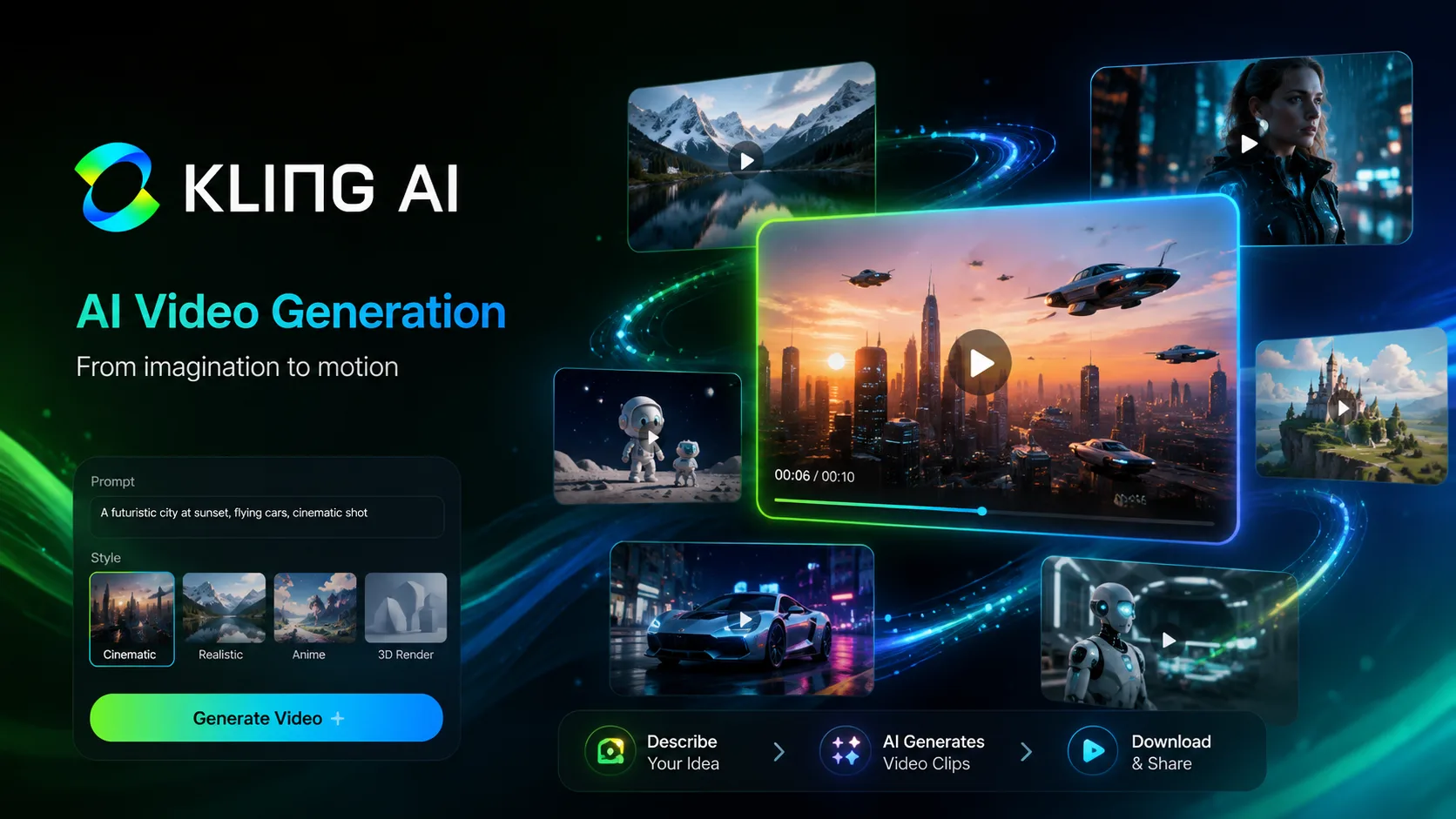
The biggest frustration every AI video creator hits within their first week: you write a detailed prompt, generate a clip that looks genuinely cinematic — and then you try to create the next scene. Same character, same location, different angle. The face has drifted. The lighting changed. The environment looks different. What should be a 30-second continuous story now looks like two clips from completely different films stitched together.
This is the problem that Kling AI Scene Control was built to solve. Launched as the signature feature cluster of Kling VIDEO 3.0 (February 2026), Scene Control is not a single button — it is a suite of precision tools that gives creators director-level control over every element of AI video generation: how characters move, how cameras track, how subjects stay consistent across shots, and how multiple scenes are orchestrated into coherent narrative sequences.
Building on the Text-to-Video feature, VIDEO 3.0 introduces element binding, allowing you to lock specific elements of the frame to ensure the main character remains consistent. Even with camera movements like zooming, panning, or tilting, the visual identity of the character holds. This is the breakthrough that is shifting Kling from a tool that generates impressive isolated clips into a platform where professional-grade multi-shot video production is genuinely possible.
In this complete guide, we break down every component of Kling AI Scene Control — how each feature works, how to use it effectively with practical prompt examples, who it is best for, and how it compares to what competitors offer. We have already covered the broader AI video generator market and the HeyGen Avatar V platform — Kling’s Scene Control addresses a very different but equally important creative challenge: not just generating a presenter, but directing a full cinematic scene.
What Is Kling AI and Why Does Scene Control Matter?
Kling AI is Kuaishou Technology’s AI video generation platform — built on a 3D Variational Autoencoder (VAE) architecture combined with a next-generation unified Multimodal Visual Language (MVL) model. Originally launched in 2024, Kling has rapidly emerged as one of the most capable AI video platforms in 2026, with its Kling 3.0 model ranking among the top publicly available models on the Artificial Analysis Video Arena with-audio leaderboard as of mid-2026.
This is Kling’s most consistently praised capability across independent reviews. The 3D Variational Autoencoder architecture generates motion that tends to feel physically plausible in ways many competing tools do not achieve at the same price tier. The platform supports text-to-video and image-to-video workflows, outputs up to 15 seconds per clip (longest of any mainstream AI video tool), and generates native synchronised audio alongside video in a single rendering pass.
Scene Control matters because it is what separates generating clips from making videos. A single beautiful clip is impressive. A coherent sequence of clips where the same character moves through a continuous scene with consistent camera work is a professional production. That is the gap Scene Control closes.
Kling AI Scene Control — The Complete Feature Suite
Scene Control in Kling VIDEO 3.0 is composed of five interconnected systems. Understanding how they work together is the key to unlocking production-quality output.
| Feature | What It Controls | Best For |
| Motion Control | Character movement from reference video | Performance capture, action sequences |
| Subject Binding (Elements 3.0) | Character identity across shots | Multi-scene storytelling, brand characters |
| Camera Control | Camera movement, angle, and trajectory | Cinematic storytelling, product videos |
| AI Director (Multi-Shot) | Automatic multi-angle generation in one pass | Short films, ads, narrative sequences |
| First/Last Frame Control | Scene entry and exit points | Chaining clips into longer sequences |
1. Kling Motion Control — Director-Level Character Movement
One of the most important upgrades introduced in Kling 3.0 is Kling Motion Control. This system allows users to influence the direction, speed, and flow of movement within generated scenes. Instead of relying solely on descriptive prompts, creators can guide how characters move, how cameras track subjects, and how environmental dynamics unfold.
Motion Control works through a reference video input system — you supply a short video clip demonstrating the movement you want the AI to replicate, and Kling maps that movement pattern onto your AI character. This is fundamentally different from describing movement in a text prompt (which is approximate and unpredictable) — it is closer to motion capture, where a real performance drives the digital output.
How Motion Control Works — Step by Step
- Prepare your source image — a clear image of your character (full body or half body, depending on the motion you need). Higher resolution produces better results; ensure clean backgrounds.
- Select or record your motion reference video — a short clip (5-15 seconds) of the movement you want replicated. This can be a clip from the Motion Control Element Library, or your own recorded footage. The character in the reference must be visible throughout with no cuts.
- Match your source image to the reference video framing — this is the most critical rule: if your source image is a half-body shot (waist up), your motion reference video must also be a half-body shot. If you use a full-body walking video with a close-up portrait, the Kling AI attempts to compress the skeleton, leading to distortion.
- Upload both inputs in the Motion Control interface on Kling AI
- Write a supporting prompt — describe the environment, lighting, and mood (not the movement — the reference video handles that)
- Generate — Kling renders the movement from the reference video onto your character in your described environment
What Kling Motion Control Can Do
- Replicate dance choreography precisely from a reference performance
- Transfer martial arts movements, sports actions, or complex gesture sequences
- Generate product walkthroughs with controlled character direction
- Map celebrity or athlete performance onto fictional AI characters
- Create consistent action sequences across multiple clips from the same motion reference
VIDEO 3.0 Motion Control enhances facial consistency across scenarios, ensuring stable facial features and smooth expressions even in complex, multi-angle, long-duration motions. This upgrade expands Motion Control into cinematic performance, high-precision motion capture, and diverse entertainment scenarios.
Key technical rule: The Motion Control Element Library only uses facial information for character reference — it does not include clothing, hairstyle, or makeup. Always upload clear facial close-ups for the character reference element to ensure sufficient facial data for consistent output.
2. Subject Binding and Elements 3.0 — Lock Your Character’s Identity Across Every Shot
Subject Binding — powered by Elements 3.0 — is the feature that fundamentally changes what is possible with multi-shot AI video. Before Kling 3.0, creating a video with the same character in multiple scenes meant accepting that the character’s face, clothing, and proportions would drift between generations. Elements 3.0 eliminates this problem by locking the character’s visual identity at a deep model level.
Elements 3.0 serves as the primary asset management system for Kling VIDEO 3.0 Omni. The model analyzes the relationship between the character and the environment, allowing for realistic interactions while protecting the identity of the subject.
The Four Pillars of Character Consistency in Kling 3.0
According to Kling’s official character consistency documentation, four features work together to maintain identity across scenes:
1. Character ID
Character ID creates a persistent identity profile for your character — locking core facial geometry, proportions, and distinctive features as a reusable element in your Kling workspace. Once a Character ID is saved, you can reference it across unlimited future generations without re-uploading images or re-specifying character details in each prompt.
2. Reference Images
The reference image acts as a visual anchor for the model. The reference image helps stabilize elements like character identity, clothing, and visual style. For best results, use multiple reference angles — front-facing, three-quarter, and profile — to give the model enough data to maintain consistency when the generated camera angle changes. You can combine up to 4 reference images in Elements 3.0 for maximum stability.
3. Bind Subject Feature
In image-to-video mode, the Bind Subject feature locks the face and clothing of a character from the input image before generation begins. In image-to-video mode, turn on the Bind Subject feature to fix the face and clothing, then layer the multi-shot storyboard tool to hold that look for the full 15-second clip. This is the fastest, most direct way to ensure character consistency for single-clip generations.
4. Omni Tagging
Omni Tagging allows characters to be saved and tagged as reusable assets — giving them a label you can call in future prompts without re-uploading reference images. Reuse the saved element across separate generations, not just one clip, for genuine character consistency across your entire video project over time.
Multi-Character Scenes
Kling 3.0 supports multi-character coreference — binding multiple distinct characters simultaneously in a single scene. Multi-character coreference is what stops two or three people in the same scene from blending into one face. By clearly specifying dialogue for each character in your prompt, the model automatically matches each character with their corresponding lines, even across bilingual exchanges in a single shot.
3. Camera Control — Define Exactly How Your Scene Is Filmed
Camera Control is where Kling’s Scene Control system most directly mirrors the language of traditional filmmaking. Good Kling AI prompt engineering treats the model like a camera operator, not a wish list. The system responds strongly to specific camera language — instructions about how a shot is captured matter more than a long list of what is in frame.
Camera Control Commands That Work in Kling 3.0
Kling 3.0 understands standard cinematography language. Including these terms directly in your prompt produces reliable, consistent results:
| Camera Command | What It Does | Example Use Case |
| Dolly in / Dolly out | Camera moves physically toward or away from subject | Dramatic reveal, emotional close-up |
| Pan left / Pan right | Camera rotates horizontally on fixed axis | Following a character, revealing environment |
| Tilt up / Tilt down | Camera rotates vertically on fixed axis | Looking up at buildings, looking down at details |
| Tracking shot | Camera moves alongside a moving subject | Walking scenes, chase sequences |
| Crane/Boom shot | Camera moves vertically with wide arc | Establishing shots, epic reveals |
| Dutch angle | Camera tilted on its roll axis | Psychological tension, disorientation |
| Close-up (CU) | Tight framing on face or object detail | Emotional moments, product details |
| Wide shot (WS) | Full environment visible, character small | Establishing location, scale context |
| Over-the-shoulder (OTS) | Shot from behind one character facing another | Dialogue scenes, confrontations |
| Aerial/Bird’s eye | Camera looking straight down | Crowd scenes, geographic context |
The ability to control camera movement precisely within the Kling interface means that directors can scout locations and film scenes entirely within the digital realm, using AI to bridge the gap between imagination and visual reality.
Sample Prompt Using Camera Control Language
“Slow dolly-in on a young woman sitting at a desk reading a letter. Begin as a wide shot showing the full room — warm afternoon light through tall windows. Camera moves steadily forward to a medium close-up on her face as she reads. Expression shifts from neutral to worried. Golden hour lighting. Cinematic, shallow depth of field.”
This prompt gives Kling specific camera movement (dolly-in), starting and ending framing (wide shot to MCU), subject action (reading letter), emotional arc (neutral to worried), lighting reference (golden hour), and visual style (cinematic, shallow DOF). Every element is actionable. The output will be significantly more controlled than a generic “woman reading a letter indoors.”
4. AI Director — Multi-Shot Sequences in a Single Generation Pass
AI Director is Kling 3.0’s most ambitious Scene Control feature — and the one that most dramatically closes the gap between AI video generation and traditional professional production. A major breakthrough in Kling VIDEO 3.0 Omni is the ability to generate multi-shot narratives in a single pass. Earlier AI models typically produced a single continuous shot from a prompt. Creators had to generate many separate clips and join them manually. The new AI Director feature automates that workflow.
What AI Director Does
- Generates up to 6 distinct camera cuts within a single 15-second generation — automatically managing shot type, angle, and composition for each cut
- Understands cinematic language — can handle shot-reverse-shot patterns, cross-cutting dialogue, and transitions between establishing and close-up shots
- Maintains character consistency across all 6 shots — because Subject Binding is active during AI Director generation, the same character looks identical in the wide shot, close-up, and over-the-shoulder within the same generation
- Automates scene transitions — cut, dissolve, and match-cut transitions are handled by the model based on the narrative context of your prompt
AI Director Prompt Template
“Multi-shot sequence. Shot 1: Wide establishing shot of a busy Tokyo street at night, neon lights reflecting on wet pavement. Shot 2: Medium shot tracking a young man in a navy jacket walking through the crowd. Shot 3: Close-up on his face — determined expression. Shot 4: Over-the-shoulder shot as he stops and looks up at a tall glass building. Shot 5: Aerial shot pulling back to reveal the full city skyline. Cinematic, high contrast, dramatic score implied.”
This prompt instructs AI Director to generate five distinct shots with explicit framing, subject action, and visual context for each. Kling’s model will manage the camera transitions and character consistency automatically.
5. First/Last Frame Control — Chain Clips Into Seamless Long-Form Video
First/Last Frame Control solves the challenge of creating longer AI videos that exceed Kling’s 15-second per-clip limit. By defining the exact starting and ending frames of each clip, creators can chain multiple 15-second generations into a continuous, seamless narrative where the end of one clip transitions naturally into the beginning of the next.
How First/Last Frame Chaining Works
- Generate your first clip using a text or image-to-video prompt
- Extract the last frame of that clip as a still image
- Use that still as the first frame input for your next generation
- The new clip begins exactly where the previous one ended — same lighting, same character position, same environment
- Repeat across as many clips as needed to build your full sequence
The first/last frame feature lets you chain clips into longer, continuous scenes. Use your character portrait from Midjourney or Flux 2 as a starting frame — you control the exact composition, colour, and framing, and Kling 3.0 adds motion to it.
The Technical Foundation: Kling’s Hyper-Realistic Motion Engine
All five Scene Control features are built on Kling’s underlying physics simulation system — what independent reviewers have called the “Hyper-Realistic Motion” engine. This is what distinguishes Kling’s motion quality from competitors at similar price points.
Kling currently leads the market in simulating complex interactions, such as the way fabric drapes over a moving body or how light reflects off a rippling water surface. These small details are what prevent the uncanny valley effect and make Kling AI image-to-video transitions feel truly cinematic rather than computer-generated.
The physics simulation handles:
- Cloth dynamics — fabric folds, drapes, and moves based on the character’s motion and simulated air resistance
- Fluid simulation — water surfaces, rain, ocean waves, and liquid interactions behave according to real fluid physics
- Light physics — reflections, refractions, and ambient occlusion update in real time as the scene changes
- Particle systems — smoke, fire, dust, and atmospheric effects behave as physical systems rather than looping animations
- Object interaction — when a character touches or moves through an environment, the environment responds physically
How to Get Started With Kling AI Scene Control — Step by Step
- Go to Kling AI’s official platform at klingai.com and create a free account. The free tier gives 66 credits per month — enough to experiment with Scene Control features before committing to a paid plan.
- Choose your workflow — text-to-video for abstract or environmental scenes; image-to-video for character-consistent scenes (recommended for most Scene Control use cases).
- Prepare your reference assets — create or source a character reference image (clear, well-lit, neutral background). If using Motion Control, prepare your reference video. If using Elements 3.0, gather 2-4 reference angles of your character.
- Enable Subject Binding in the image-to-video interface before writing your prompt — this is the fastest path to character consistency.
- Write a cinematography-first prompt — lead with camera instructions (shot type, movement), then describe the action, then the environment and mood. Treat Kling like a camera operator.
- Select your video model — Kling 3.0 Standard for fast iteration; Kling 3.0 Pro for maximum quality. The Pro model takes slightly longer but follows complex scene instructions more precisely.
- Review and iterate — the first generation is a draft. Review what the model interpreted correctly and what needs adjustment. Refine your prompt with more specific camera language and re-generate. Most experienced Kling users generate 3-5 variations per scene before selecting a final clip.
- Chain clips using First/Last Frame Control for sequences longer than 15 seconds.
Who Should Use Kling AI Scene Control?
Independent Filmmakers and Storytellers
Scene Control makes short-film production accessible without a camera crew, locations, or actors. The AI Director’s multi-shot capability and Subject Binding’s character consistency allow a solo creator to produce a coherent 2-3 minute short film from their laptop — something that required a minimum 5-person team and significant equipment budget before 2026.
Marketing and Brand Creative Teams
Product demo videos, brand storytelling campaigns, and social media content with consistent brand characters are all achievable through Scene Control. The ability to maintain a specific character’s appearance across an entire campaign — without scheduling recurring video shoots — is a significant operational advantage for marketing teams producing content at volume.
E-Learning and Education Creators
For education, the system allows for the creation of consistent digital tutors. An instructor can bind their own appearance and voice to a character element. They can then place that digital version of themselves into various historical or scientific settings to create engaging lesson modules.
Game and Concept Artists
Character concept videos, world-building previsualisations, and game cutscene prototypes are significantly faster to produce with Kling’s Scene Control. Artists can test character designs in motion before committing to full production pipelines.
Music Video Directors
Kling’s Motion Control — particularly its ability to replicate dance choreography from a reference video — combined with its stylised visual output makes it well-suited for music video production. A director can reference real choreography and have AI characters perform it in stylised visual environments that would be impractical or impossible to shoot practically.
Kling AI Pricing — What Does Scene Control Cost?
| Plan | Monthly Price | Credits/Month | Scene Control Access |
| Free | $0 | 66 credits/month | Basic Motion Control + limited Subject Binding |
| Basic | ~$10/month | 660 credits | Full Motion Control, Elements 3.0, Camera Control |
| Standard | ~$35/month | 3,000 credits | All Scene Control features + priority generation |
| Pro | ~$95/month | 8,000 credits | Full AI Director, Kling 3.0 Pro model, maximum quality |
Credit consumption in Kling varies by model and quality tier — Standard resolution consumes fewer credits per generation than Pro. The free tier’s 66 monthly credits is genuinely enough to test Scene Control features: expect approximately 10-15 standard-quality generations, or 5-8 Pro model generations.
Frequently Asked Questions
Q1. What is Kling AI Scene Control?
Kling AI Scene Control is a suite of precision video generation features in Kling VIDEO 3.0 that gives creators director-level control over AI videos. It includes Motion Control (character movement from reference video), Subject Binding/Elements 3.0 (character identity consistency), Camera Control (cinematography commands), AI Director (multi-shot generation), and First/Last Frame Control (clip chaining).
Q2. How does Kling Motion Control work?
Motion Control uses a reference video input to map movement onto an AI character. You provide a source image of your character and a reference video demonstrating the movement. Kling transfers the motion from the reference video onto your character, generating physically accurate movement without requiring text descriptions of complex actions.
Q3. What is Subject Binding in Kling 3.0?
Subject Binding locks a character’s visual identity — face, clothing, proportions — so it remains consistent across multiple scene generations. It is enabled in the image-to-video mode and prevents the character drift that makes multi-shot AI video feel incoherent.
Q4. What is Elements 3.0 in Kling AI?
Elements 3.0 is Kling’s asset management system for character and environment consistency. It allows creators to save character references as reusable elements, combine up to 4 reference images for maximum character stability, and tag characters for recall across future generations without re-uploading materials.
Q5. What is Kling AI Director?
AI Director is Kling 3.0’s automated multi-shot generation feature — it can produce up to 6 distinct camera cuts within a single 15-second generation, managing shot type, angle, transitions, and character consistency automatically. It enables multi-scene narrative sequences without manual clip assembly.
Q6. How long can Kling AI videos be?
Individual Kling 3.0 clips are up to 15 seconds long — the longest single-generation limit of any mainstream AI video tool. Using First/Last Frame Control to chain clips, creators can build sequences of any length by connecting multiple 15-second generations seamlessly.
Q7. Does Kling AI generate audio natively?
Yes. Kling 2.6 introduced native synchronised audio generation — audio and video are generated together in a single pass rather than audio being added as a post-processing step. Kling 3.0 continues and improves this capability, producing ambient sound, environmental audio, and basic dialogue that syncs with the visual content.
Q8. How does Kling AI compare to Runway Gen-4 for scene control?
Kling leads on character consistency tools (Subject Binding, Character ID, Elements 3.0) and motion control features. Runway Gen-4 leads on creative editing workflow — it has a more complete in-platform editor with inpainting, outpainting, and motion brush. For multi-shot character-consistent storytelling, Kling’s Scene Control is more capable. For a complete post-generation editing workflow, Runway is more comprehensive.
Q9. Is Kling AI Scene Control free to use?
Basic Motion Control and limited Subject Binding are available on the free tier (66 credits/month). Full Scene Control — including AI Director, full Elements 3.0, and Kling 3.0 Pro model access — requires a paid plan starting at approximately $10/month (Basic).
Q10. What is the best prompt structure for Kling AI Scene Control?
Lead with camera instructions (shot type, movement), then describe character action, then environment and lighting, then mood and visual style. Treat Kling like a camera operator receiving a shot brief — specific cinematography language (dolly-in, tracking shot, OTS) produces more controlled output than descriptive adjectives alone. For multi-shot prompts, label each shot explicitly (Shot 1:, Shot 2:, etc.).
Final Verdict: Is Kling AI Scene Control Worth It in 2026?
By integrating native audio synchronisation, precise 15-second sequences, and Elements 3.0 for character consistency, Kling AI enables creators to produce cohesive, commercial-grade narratives in a single pass. This shift from asset generation to full-scale production marks a new era for cinematic efficiency and visual fidelity.
Kling AI Scene Control is the most complete answer to the problem that has frustrated AI video creators since the category launched: how do you make a video — a coherent, multi-shot, character-consistent sequence — rather than just a collection of individually impressive clips? The combination of Motion Control, Subject Binding, AI Director, Camera Control, and First/Last Frame chaining gives creators a genuine director’s toolkit rather than a clip generator with a text field.
For creators already working with other AI video tools and frustrated by character drift, limited camera control, or the manual labour of stitching clips into sequences — Kling’s Scene Control suite solves all three problems simultaneously. The free tier at 66 credits per month is generous enough to validate whether the platform suits your workflow before committing. The Basic plan at $10/month is one of the most accessible entry points for any professional-quality AI video tool in 2026.
Explore the full platform and try Scene Control directly at klingai.com.
What type of video are you trying to create with Kling AI? Tell us your use case in the comments and we will suggest the specific Scene Control features and prompt structure that will give you the best results.
*All feature descriptions and pricing are based on Kling AI’s official documentation and independent testing published between February and July 2026. Kling regularly updates its platform; always verify current features and pricing at klingai.com before subscribing.




0 Comments